Memo Card Download: Web and Desktop Guide
Looking for a Memo Card download? Learn how to use the official web workspace on Mac and Windows, avoid unofficial installers, and start transcription safely.
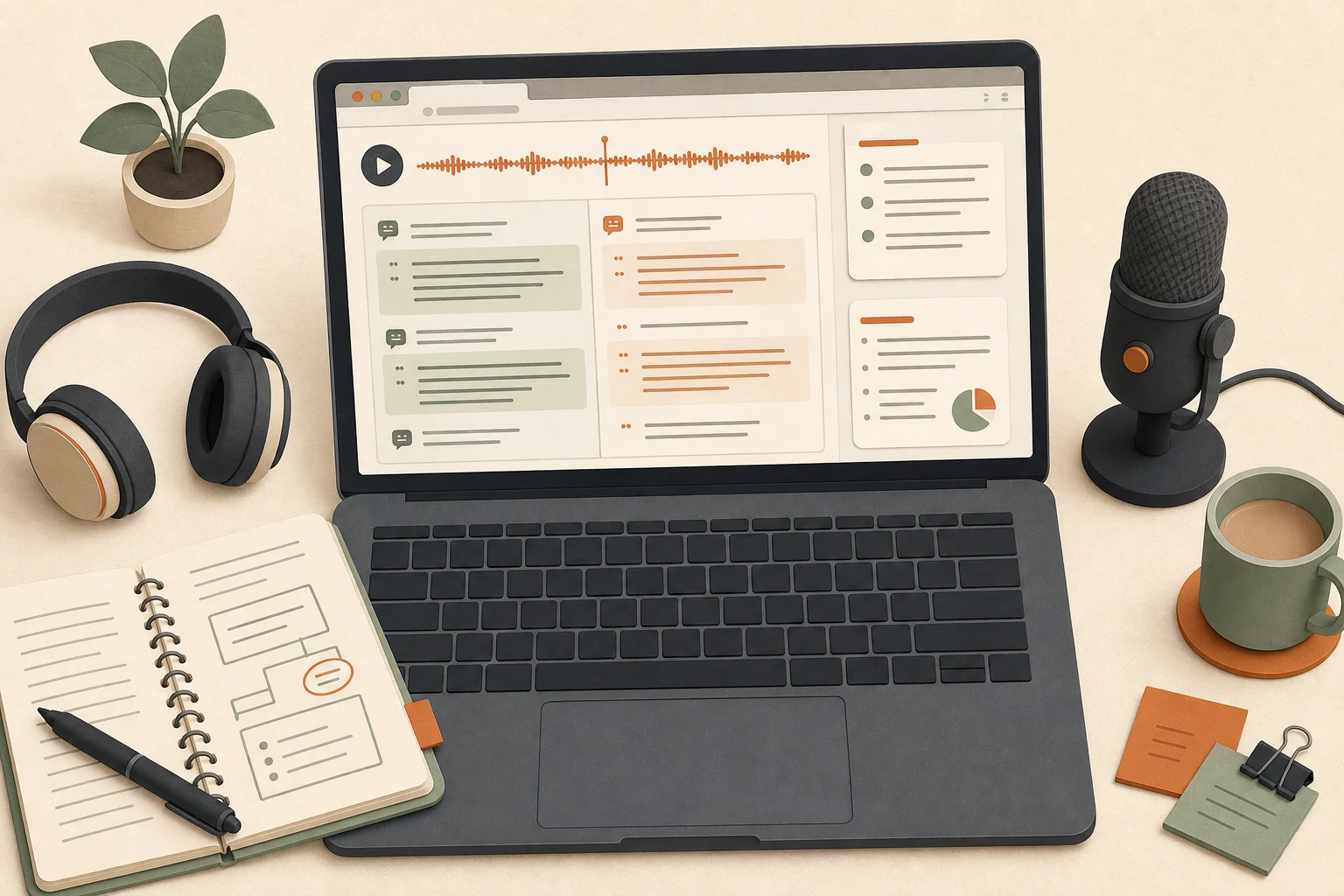
A search for “Memo Card download” usually means one of two things: you want to open Memo Card on a computer, or you want to confirm that you have found the official product. As of July 2026, Memo Card runs as a browser-based lecture intelligence tool. You do not need a Windows or Mac installer to use the current service.
Open the Memo Card workspace, sign in, and choose live transcription, live translation, or a recorded audio upload. This guide explains how official access works and what to avoid when a search result offers an unfamiliar installer.
Memo Card web download: no installation file required
There is no file to download for the Memo Card web version. The workspace runs in a modern browser and receives product updates on the site. This makes it easier to move between a personal laptop and a school or library computer without installing the product again.
You can start in four steps:
- Open the official Memo Card site and sign in.
- Allow browser microphone access or choose an existing lecture recording.
- Select live transcription, live translation, or audio upload.
- Return to the session after it ends to review the transcript, summary, keywords, and bilingual notes.

Use a current browser and confirm that the correct microphone is selected before a class begins. If you use Memo Card on a shared computer, sign out afterward and do not let the browser store your login details.
Memo Card desktop download for Mac and Windows
Searches for a Memo Card desktop download often come from people who prefer a larger screen. Memo Card currently uses the same browser workspace on Mac and Windows, with no separate .exe or .dmg package. Your account, sessions, and available features stay in the web product.
A desktop computer still changes how comfortable the workflow feels. During an online class, you can keep Zoom, Teams, or a course video beside Memo Card. One side shows the lecturer or presentation, while the other shows live transcription and translation. This arrangement cuts down on tab switching and gives long bilingual passages enough room.
After class, a keyboard and larger display make it easier to search for terminology, copy a useful quotation, compare the summary with the transcript, and prepare notes for an assignment. “Desktop” describes the device you use, not a second Memo Card product.
Finding the official Memo Card download and access point
Check that the site uses the memocard.com domain. The official route leads to the web workspace. It does not ask you to download a cracked package from a file-sharing service or install an unrelated browser extension.
Do not run a file merely because its name includes Memo Card. An unofficial Windows installer, Mac package, APK, or extension can request unnecessary permissions or contain software that has no connection to the product. If Memo Card releases a native client in the future, the official site will list its supported systems, version, and download location.
The same rule applies to login pages. Confirm the domain before entering an account, especially when you arrive through an advertisement or a third-party download directory.
What you can do in the browser workspace
Follow live transcription and lecture translation
Memo Card turns microphone audio into text during a live session. Translation mode places the source transcript beside the target language so you can check the original wording while reading the meaning. This is helpful in fast lectures, classes with unfamiliar accents, supervisor meetings, and academic conferences.
Choose the source and target languages before the session. The options visible in the current workspace are the most reliable list of supported languages.
Upload recordings and separate speakers
You can upload an existing class, seminar, interview, or meeting recording. Memo Card produces a full transcript and can separate speakers when needed. Speaker context makes it easier to distinguish a lecturer's explanation from a student's question or a participant's response.
Recording laws and classroom rules vary. Ask the lecturer, interviewer, or meeting participants for permission before capturing their audio.
Review summaries, keywords, and bilingual notes
Long recordings can produce more text than you want to read in one sitting. Memo Card adds a summary and keywords so you can find the main topics first, then return to the source transcript for exact language. The original text, translation, and notes remain connected within the session instead of being scattered across several tools.
Frequently asked questions
Is there an official Memo Card Windows download?
There is no required Windows installer for the current product. Use a browser to visit the official Memo Card workspace and sign in.
Is there a Memo Card app for Mac?
Mac users access the same web workspace. A separate .dmg package is not currently needed.
Can I use Memo Card without downloading an extension?
Yes. The normal workflow runs in the browser and uses standard microphone permissions. Do not install an extension offered by an unrelated site.
Can I delete my recordings and sessions?
Yes. You can manage and delete your own session content. Sign out after using a shared computer and avoid storing copies of sensitive recordings in public download folders.
Start from the official site
The current Memo Card web version and what many users call Memo Card desktop both lead to the same official workspace. Open the Memo Card workspace to begin. For longer courses or repeated live sessions, review the credit and pricing guide to estimate transcription and translation usage.